

The Trackers module is where administrators register, configure and manage every tracking unit in the fleet: device settings, vehicle data, sensors, access rights, notifications and operational rules.
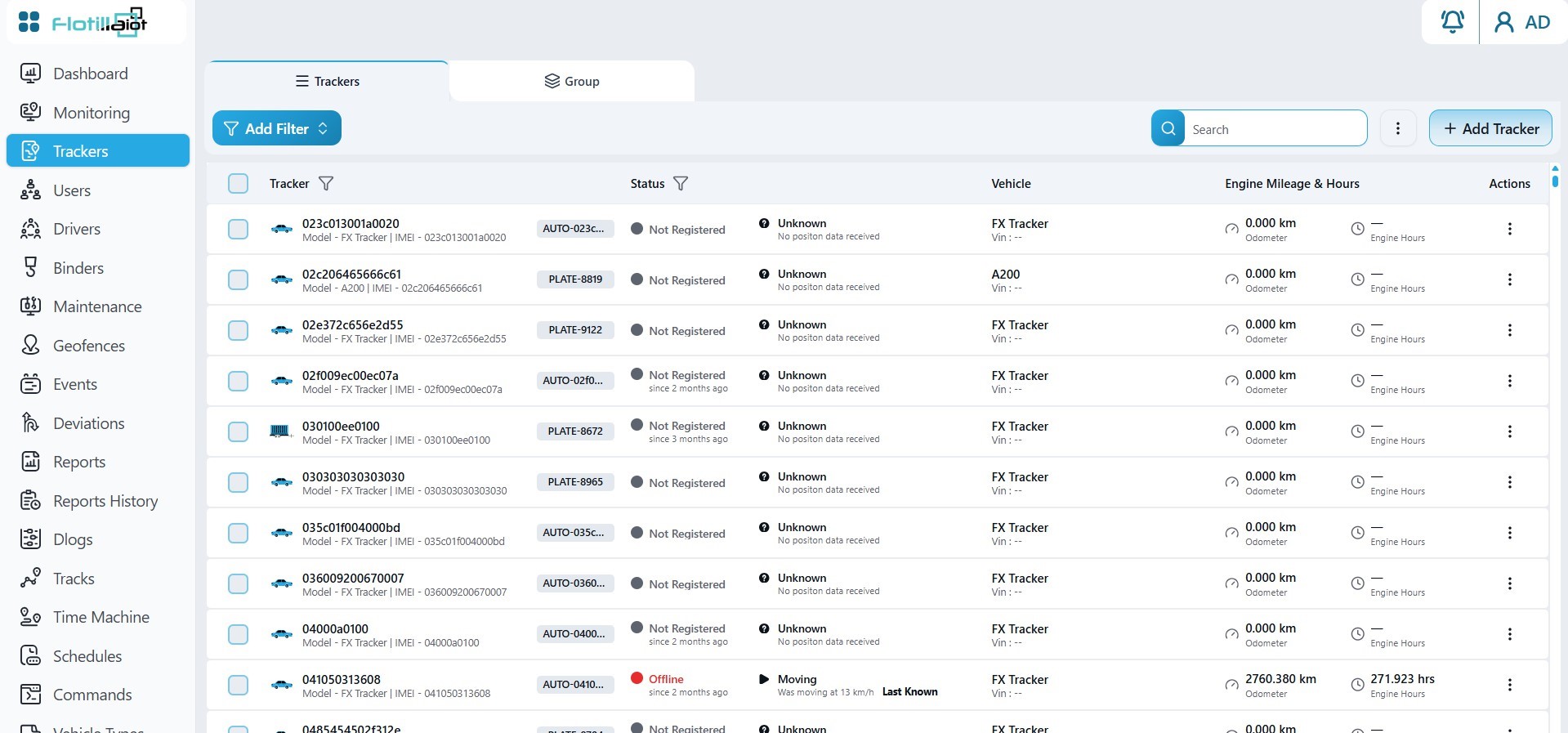
4.1 Trackers List
The list shows every unit with its label, device model, IMEI, plate number, connection status (and how long it has been in that status), assigned vehicle, engine mileage and engine hours. Filters and search are at the top, and the actions menu on each row gives quick access to the unit settings.
4.2 Registering a New Unit
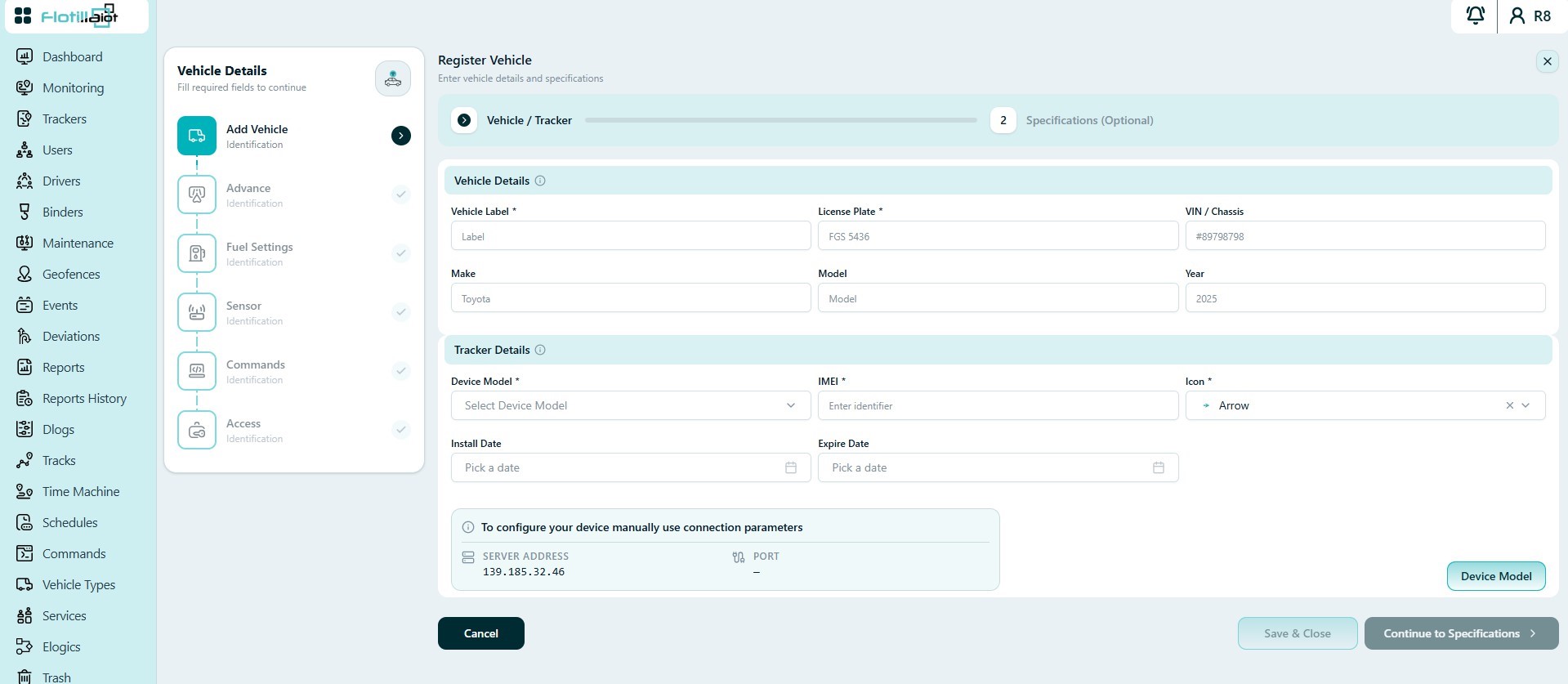
Click + Add Tracker to open the Register Vehicle wizard.
- Step 1 — Vehicle / Tracker. Enter the Vehicle Details (vehicle label, license plate, VIN / chassis, make, model and year) and the Tracker Details (device model, IMEI, map icon, install date and expire date).
- Step 2 — Specifications (optional). Enter extended vehicle attributes. You can also complete this step later.
IMPORTANT Configure the tracking device to send data to the platform server address shown at the bottom of the form, on the port that matches the selected device model. Until it does, the unit stays in the Not Registered Yet state.
4.3 Unit Settings
Select a unit in the list to open its settings. A vertical menu gives access to the tabs described below.
Unit Dashboard
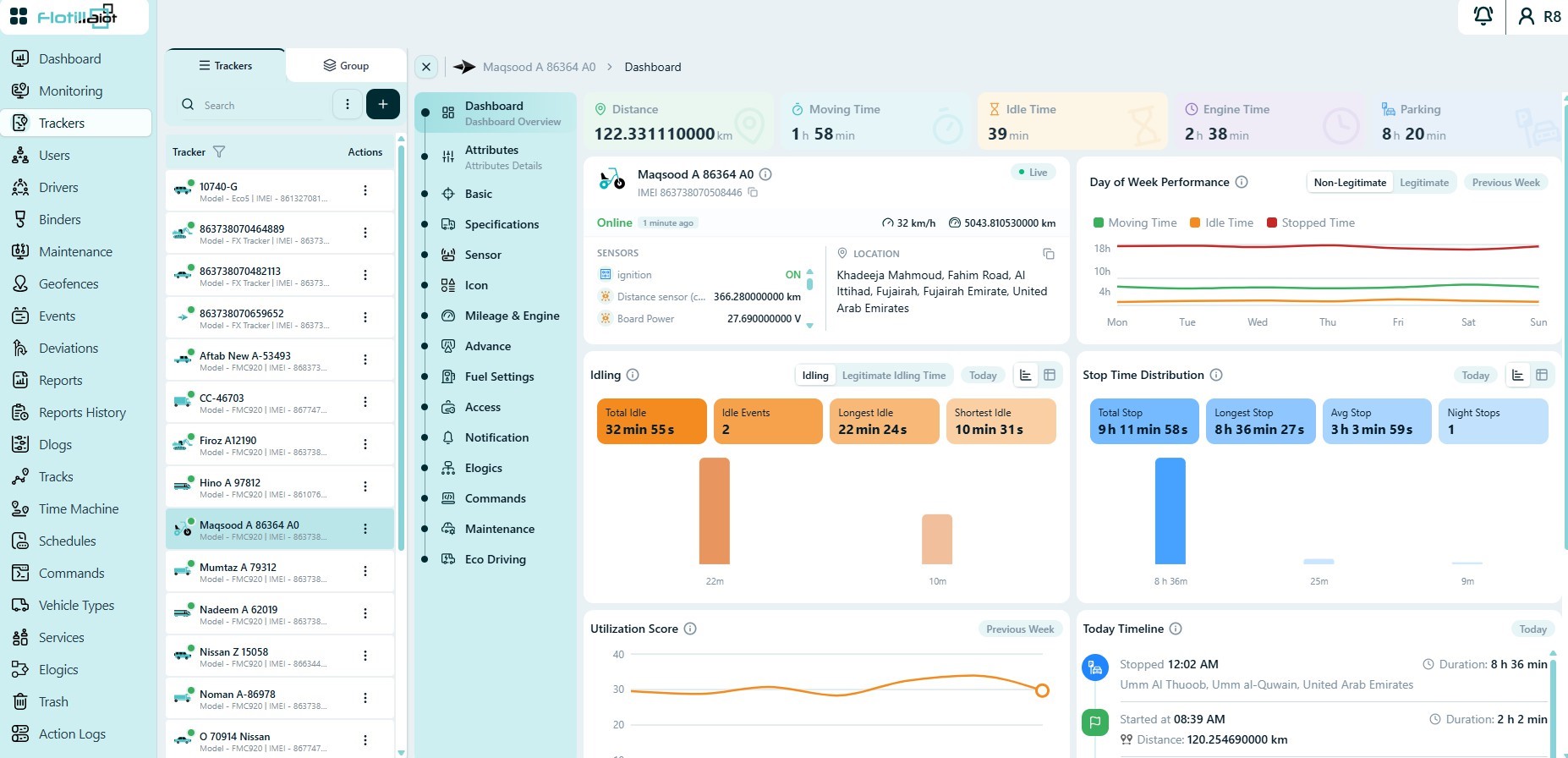
A dashboard for the individual unit that summarizes today’s activity:
- Top cards — Distance, Moving Time, Idle Time, Engine Time and Parking for today.
- Live status — connection state, current speed, odometer, live sensor values and address.
- Day of Week Performance — moving, idle and stopped time across the week, in legitimate or non-legitimate view.
- Idling — total idle time, idle events, and the longest and shortest idle.
- Stop Time Distribution — total stop time, longest stop, average stop and night stops.
- Utilization Score trend and Today Timeline, listing each stop and trip in order.
Attributes
Shows every parameter and sensor value received from the device and calculated by the platform, including raw data, calculated values and decoded parameters. Use it for diagnostics, troubleshooting and advanced analysis.
Basic
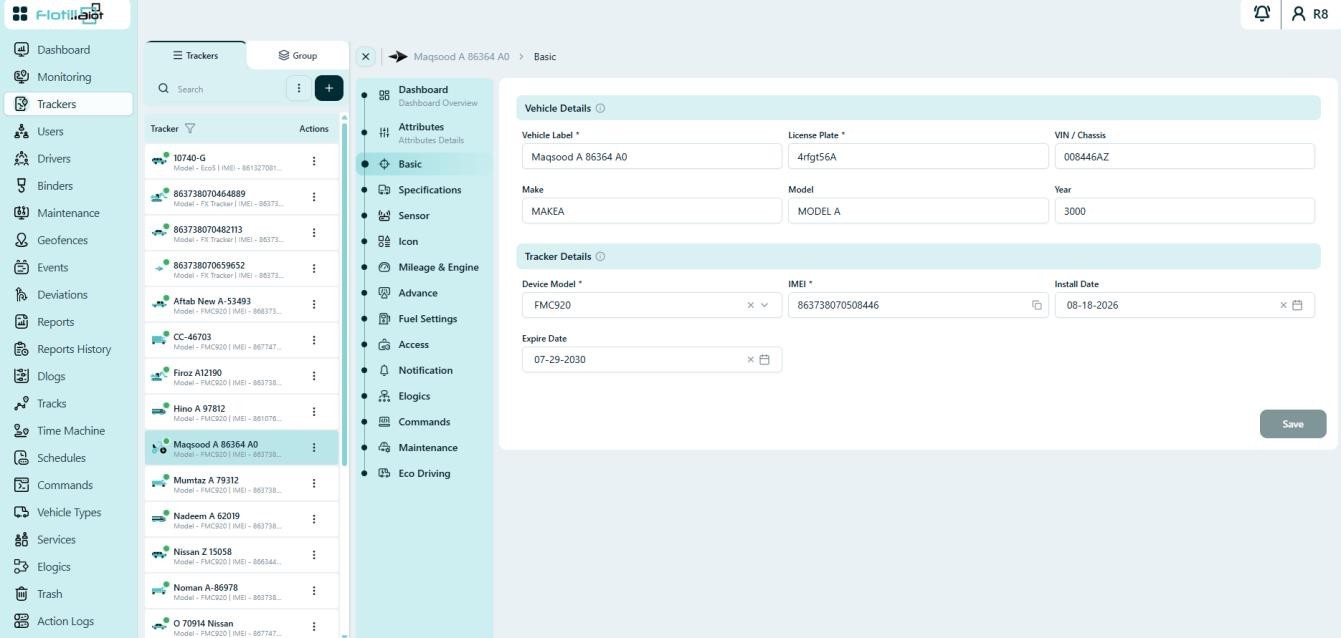
Holds the core registration data of the unit: vehicle label, license plate, VIN / chassis, make, model, year, device model, IMEI, and install and expire dates. You can update and save these values at any time.
Specifications
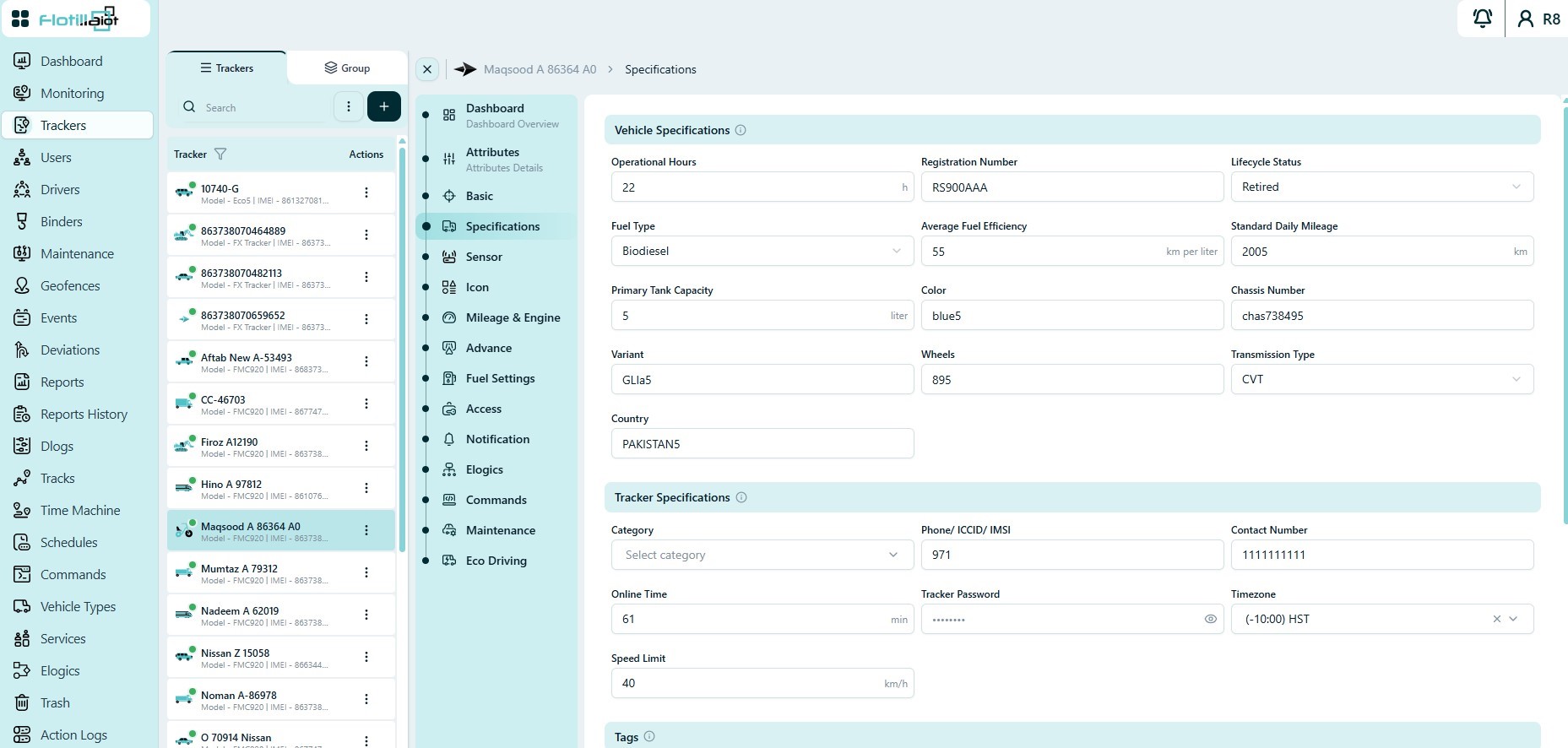
Defines extended vehicle and tracker attributes:
- Vehicle Specifications — operational hours, registration number, lifecycle status, fuel type, average fuel efficiency, standard daily mileage, primary tank capacity, color, chassis number, variant, wheels, transmission type and country.
- Tracker Specifications — category, SIM phone number, contact number, online time, tracker password, time zone and speed limit.
- Tags — free-form tags for grouping and reporting.
Sensor
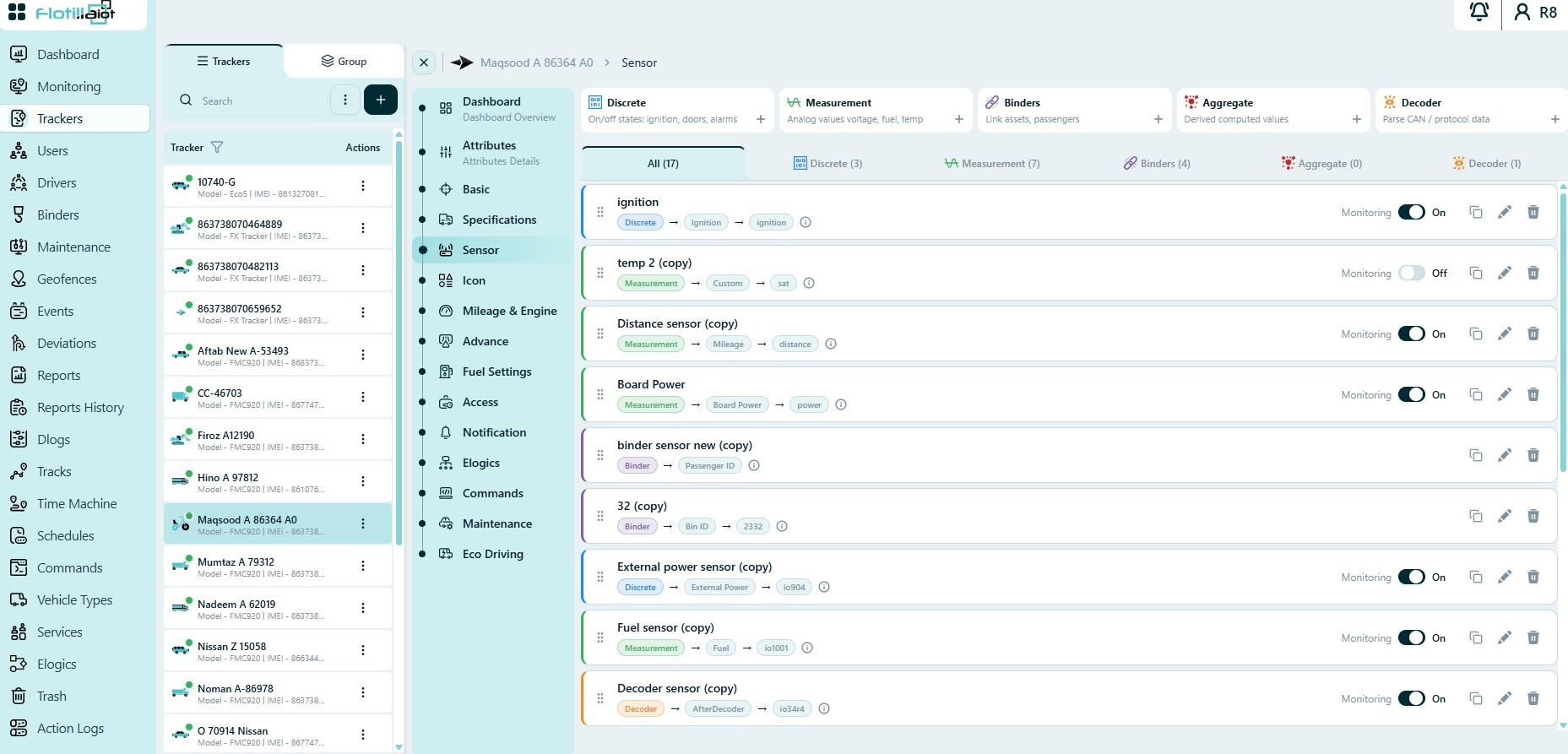
Use the Sensor tab to create and manage the sensors of the unit. The platform supports five sensor types:
| Sensor type | Use it for |
|---|---|
| Discrete | On/off states such as ignition, doors, seatbelt, hand brake and alarms. |
| Measurement | Analog values such as voltage, fuel level, temperature, RPM and speed. |
| Binders | Linking assets, drivers and passengers to the unit. |
| Aggregate | Derived values calculated from two or more parameters. |
| Decoder | Parsing CAN or protocol data and converting values between formats. |
Each sensor row shows its type, source parameter and device input key. The Monitoring toggle controls whether the sensor appears in the Monitoring module, and each sensor can be duplicated, edited or deleted.
Icon
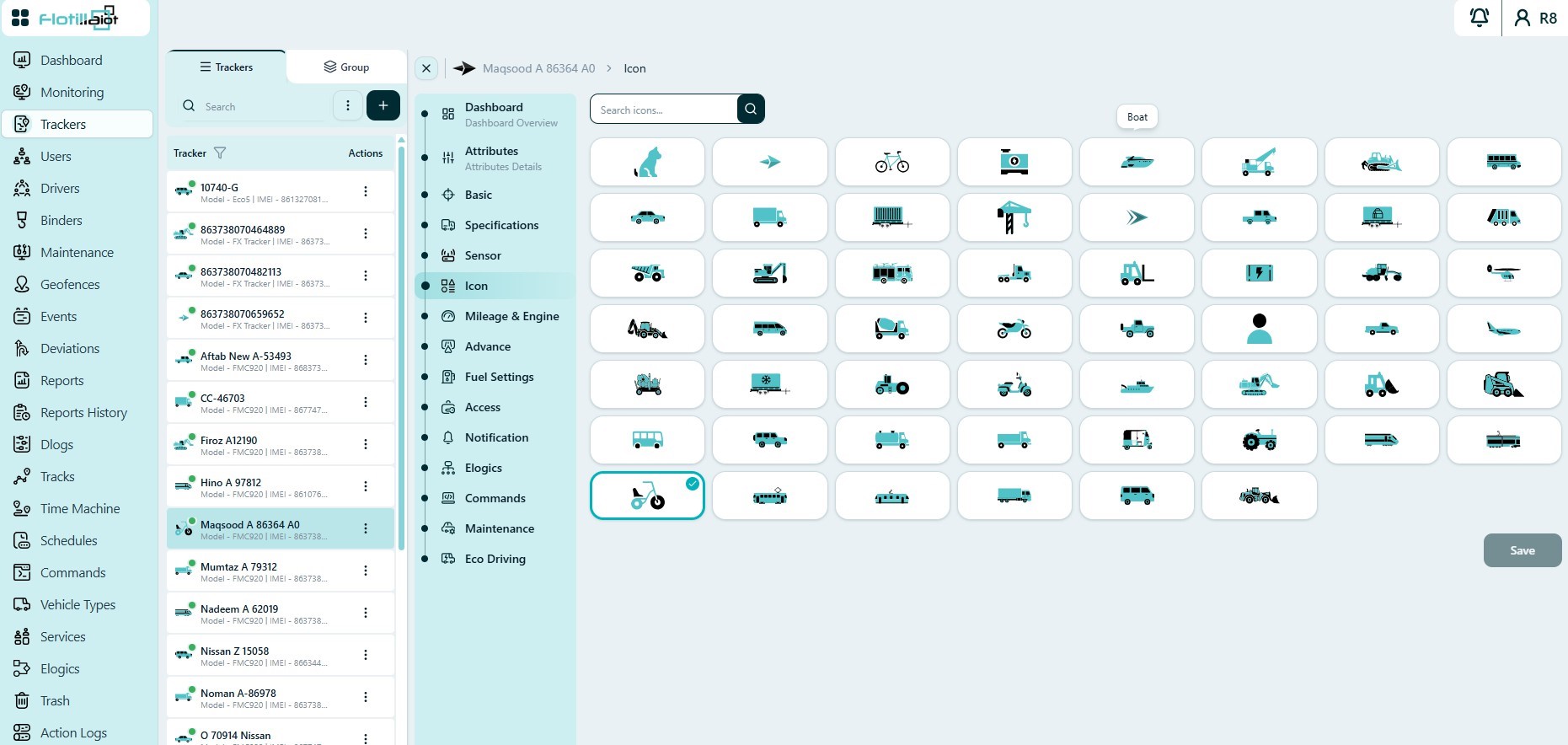
Assigns a map icon to the unit. Icons make vehicle types easy to recognize on the map and feed the Tracker Types widget on the Dashboard.
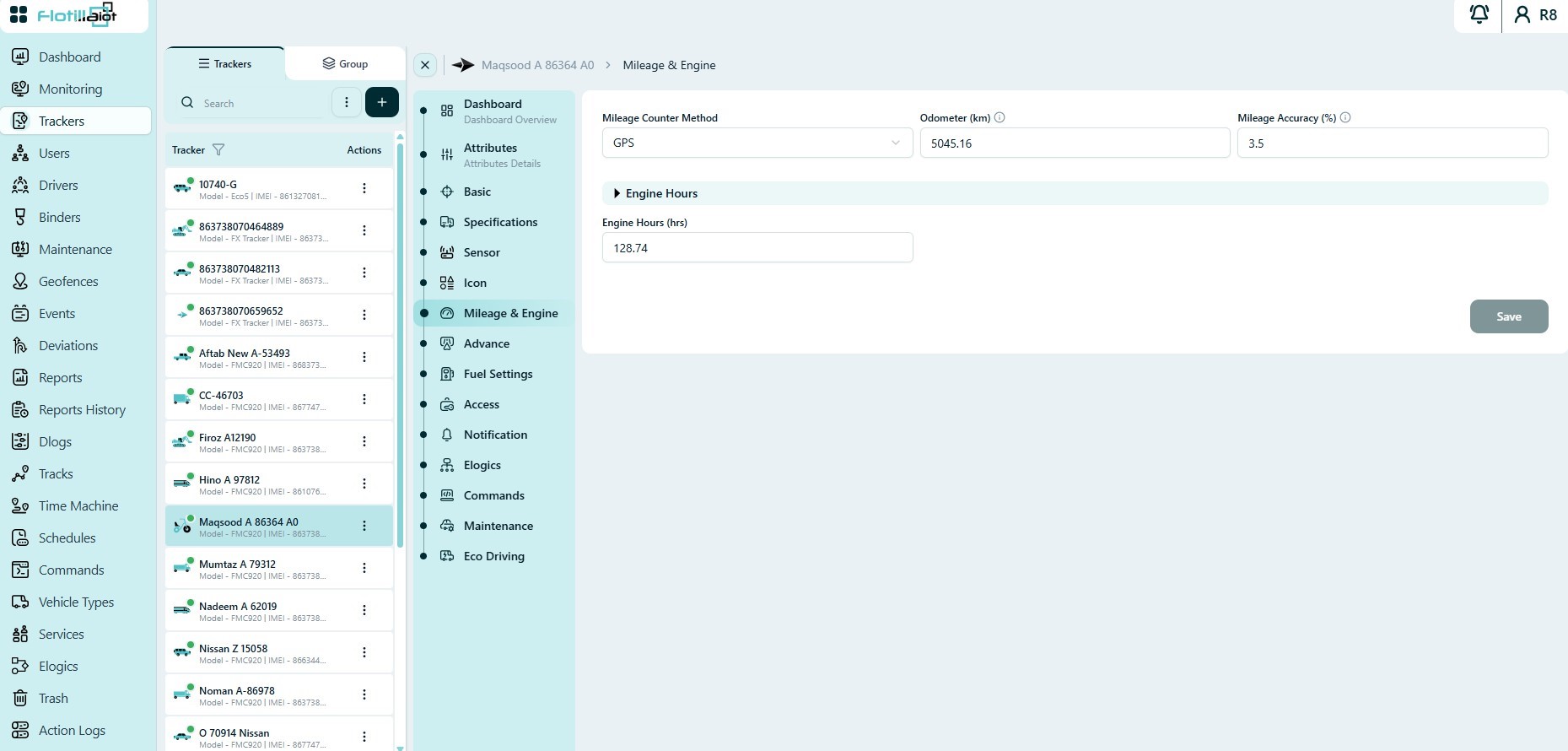
Mileage & Engine
Configures the mileage counter and lets you correct counters manually:
- Mileage Counter Method — the source used to accumulate mileage, for example GPS.
- Odometer (km) — the current odometer value, which you can align with the vehicle’s real odometer.
- Mileage Accuracy (%) — a correction factor applied to the calculated mileage.
- Engine Hours (hrs.) — the accumulated engine hours.
TIP Keep these values accurate. Reports and maintenance reminders based on mileage or engine hours depend on them.
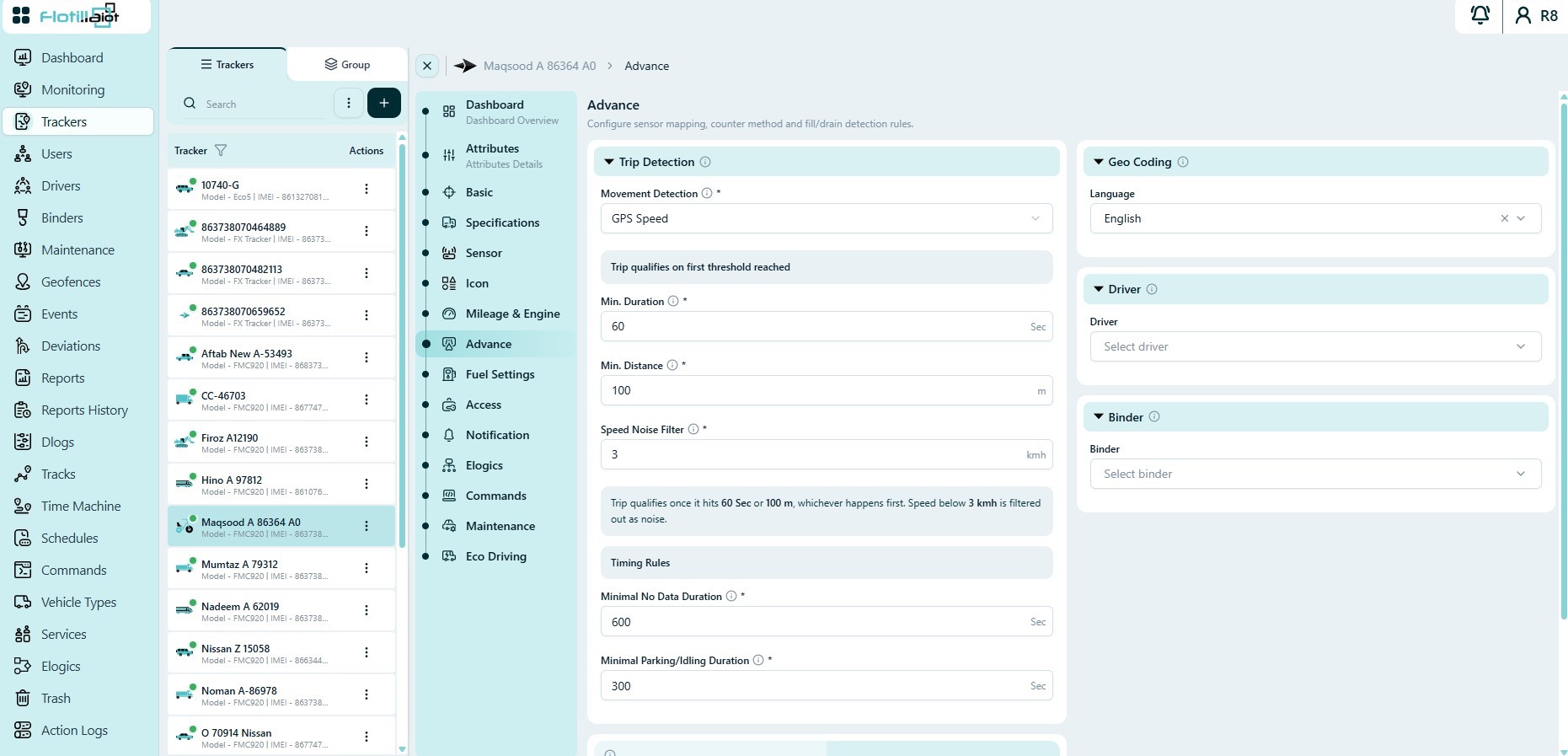
Advance
Configures trip detection and unit assignments:
- Trip Detection — the movement detection source (for example GPS Speed), minimum trip duration and distance, speed noise filter, minimal no-data duration and minimal parking/idling duration. A trip is counted once it reaches the minimum duration or the minimum distance, whichever comes first.
- Process Invalid Positions — when enabled, positions the device flags as invalid are still used for trip detection.
- Geo Coding — the language used for addresses.
- Driver and Binder — manual assignment of a driver and a binder to the unit.
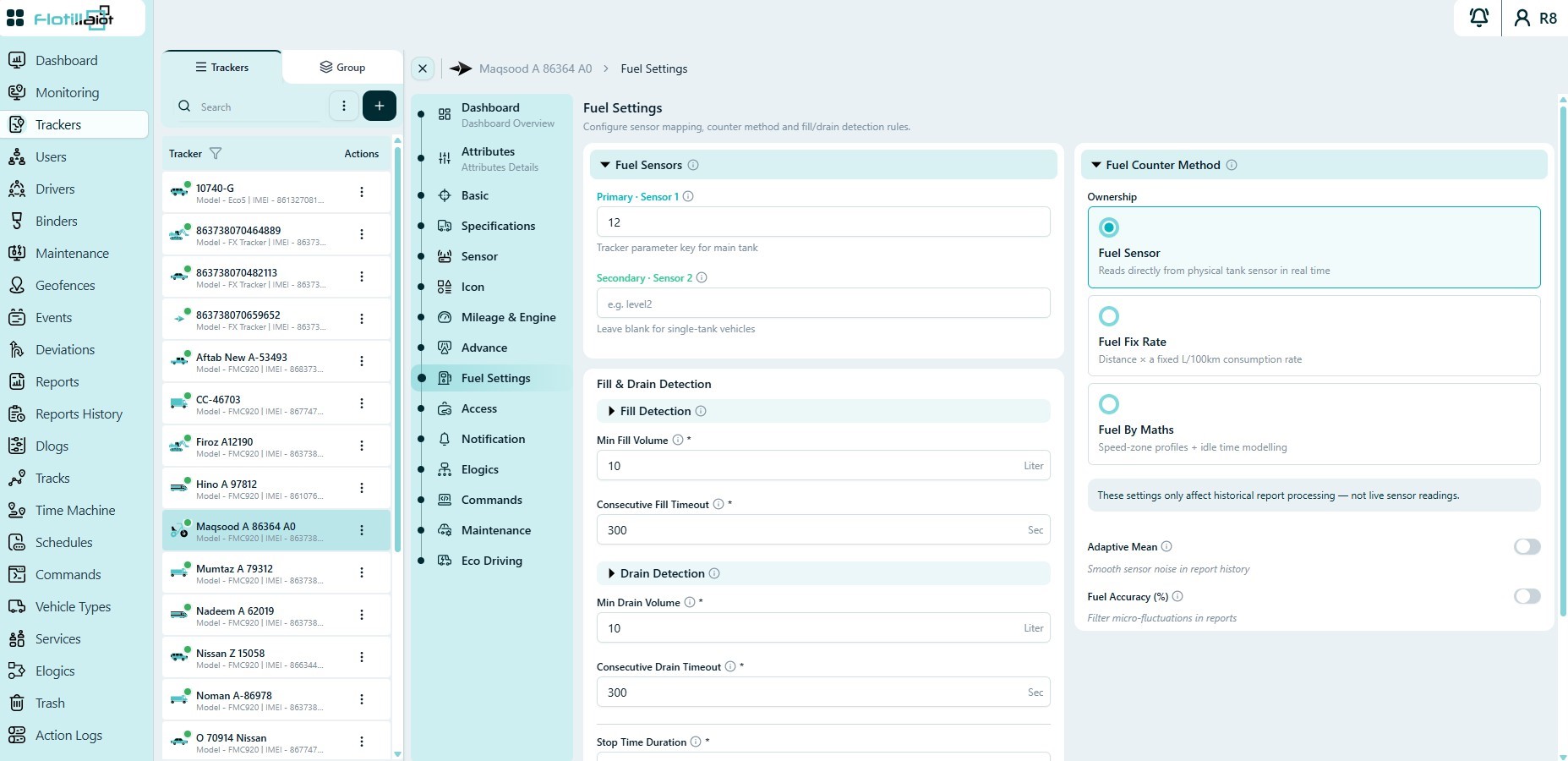
Fuel Settings
Configures the fuel sensors, the fuel counter method and the rules for detecting fills and drains:
- Fuel Sensors — the parameter keys of the primary and secondary tank sensors. Leave the secondary key blank for single-tank vehicles.
- Fuel Counter Method — Fuel Sensor (reads directly from the tank sensor), Fuel Fix Rate (distance × a fixed L/100 km rate) or Fuel by Math’s (speed-zone profiles with idle-time modelling).
- Fill & Drain Detection — minimum fill/drain volume, consecutive fill/drain timeout, stop time duration and detection in motion.
- Adaptive Mean and Fuel Accuracy (%) — smooth sensor noise and filter small fluctuations in report history.
NOTE Adaptive Mean and Fuel Accuracy affect how historical reports are processed only. They do not change live sensor readings.
Access, Notification, E-logics, Commands and Maintenance
| Tab | What it does |
|---|---|
| Access | Sets which platform users can view or manage this unit. |
| Notification | Assigns the unit to notification and alert rules (see Chapter 10). |
| E-logics | Assigns the unit to E-Logic scripts for custom automation and derived rules (see Chapter 21). |
| Commands | Assigns supported remote commands. Available commands depend on the device model (see Chapter 18). |
| Maintenance | Links the unit to maintenance reminders and schedules (see Chapter 8). |
Eco Driving
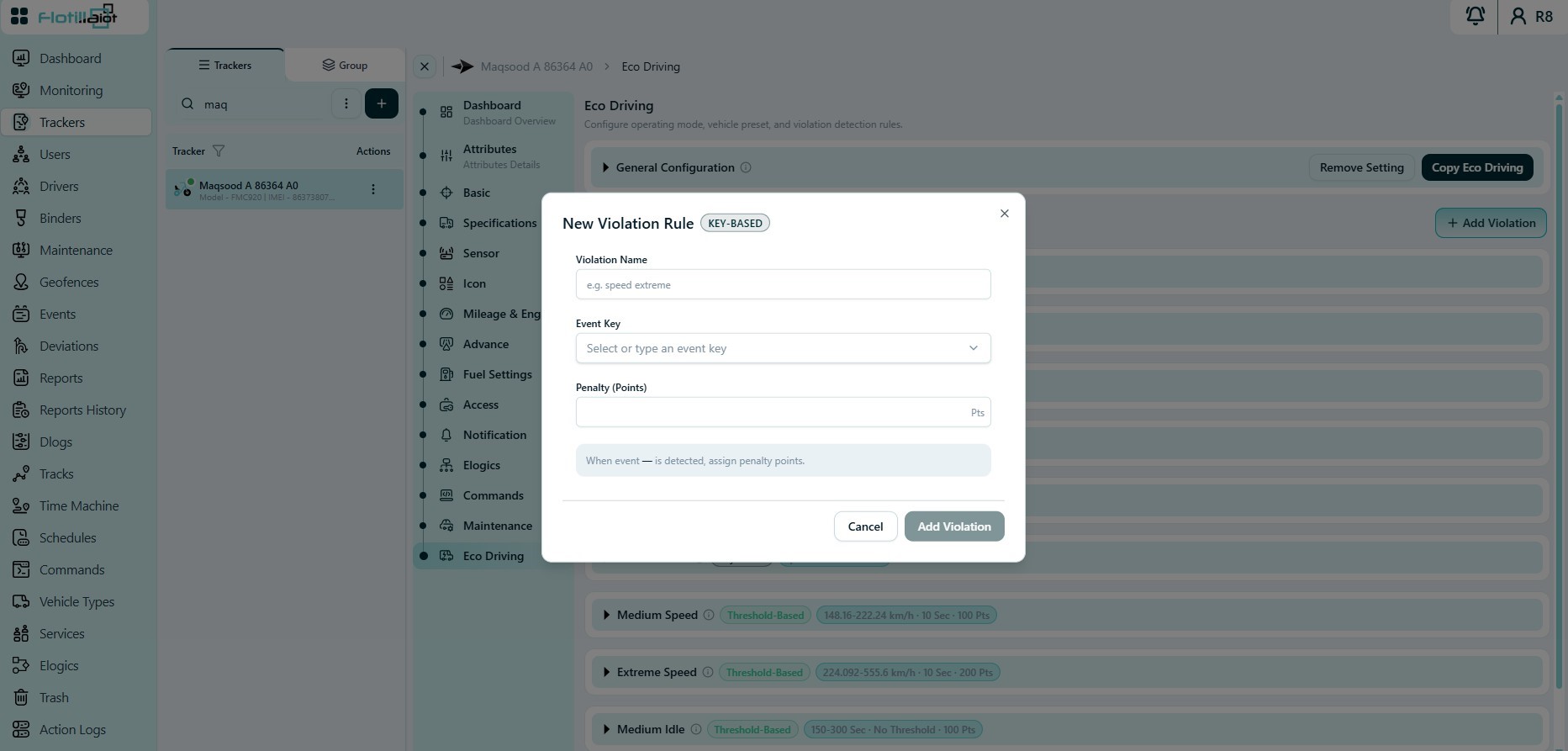
Configures driver behavior scoring for the unit. The tab has a general configuration section (operating mode and vehicle preset) and a set of violation rules. Each rule shows its trigger range and penalty points, for example Medium RPM, Medium Bump, Medium Idle, Extreme RPM, Medium Turn, Medium Acceleration, Medium Braking, Extreme Bump and Extreme Idle.
- Threshold-Based rules trigger when a measured value falls inside the configured range, and add the defined penalty points.
- Key-Based rules trigger when a specific device event key is detected.
- Copy Eco Driving copies the full rule set to other units, and Remove Setting clears it.
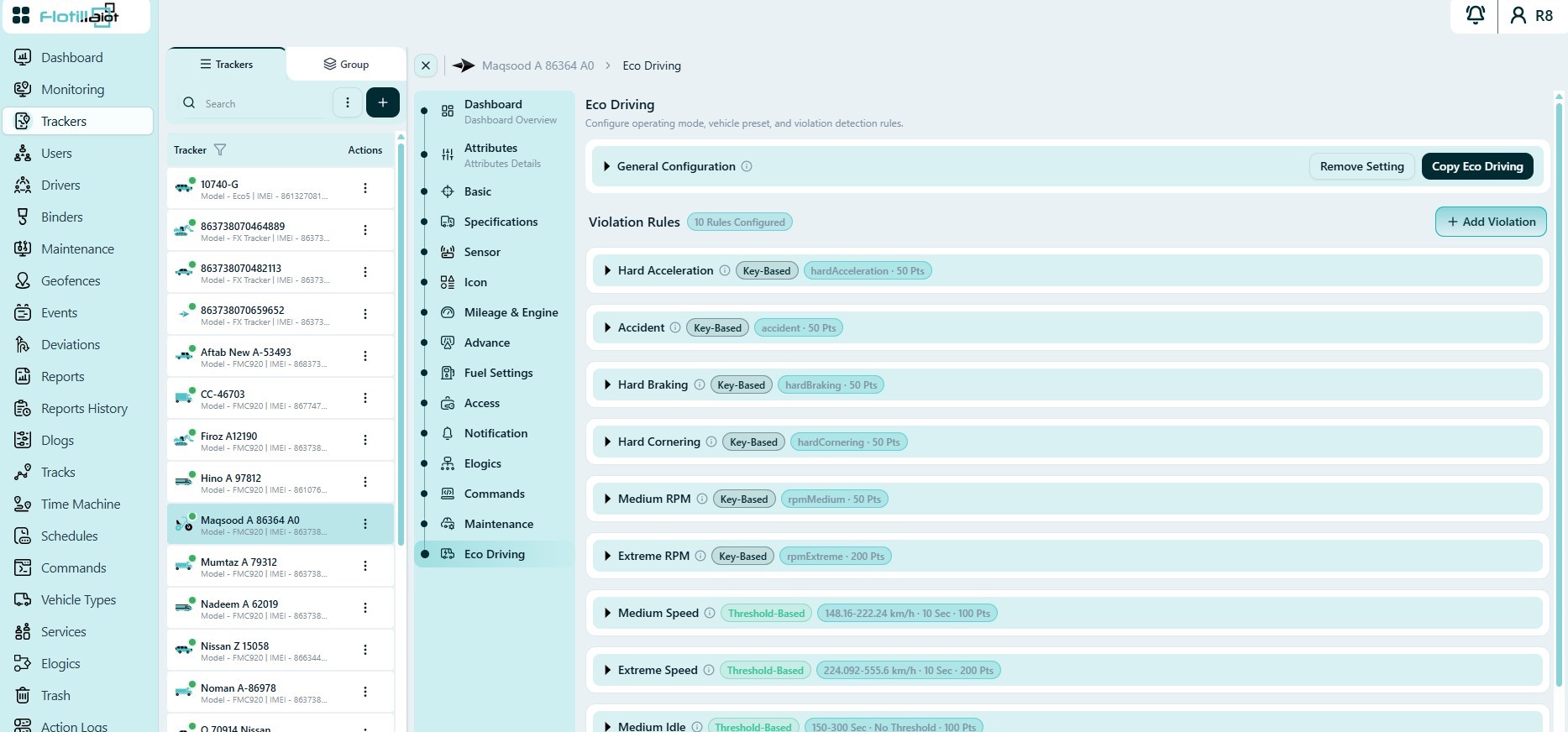
To add a rule, click + Add Violation. In the New Violation Rule dialog, set the violation type, name, event key or threshold range, and penalty points.