


The Services module manages the services you offer or perform on your vehicles, such as fuel, together with the sub services that belong to each one and their prices. It is listed in the main menu after Vehicle Types.
20.1 Services and Sub Services
The module has two panels. The left panel lists the services, and the right panel shows the sub services of the service you select.
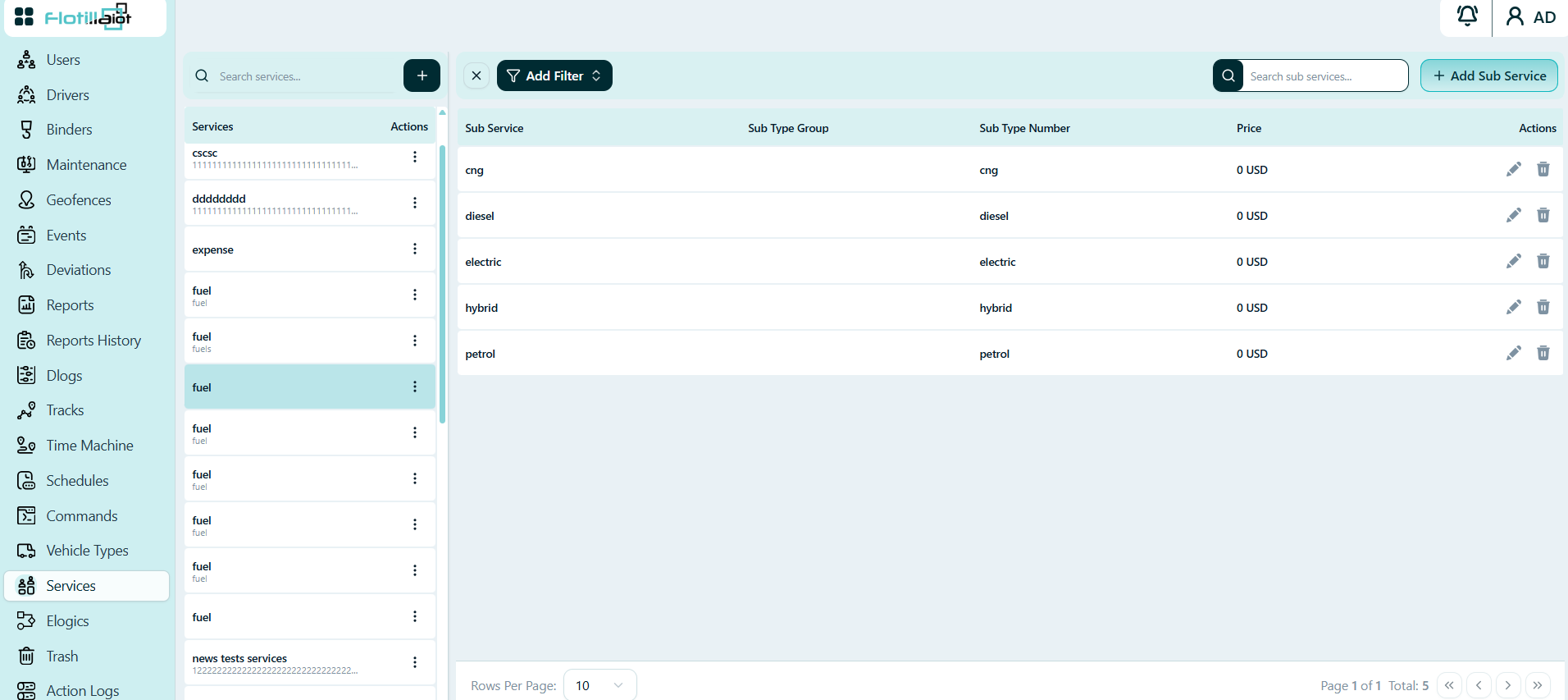
Services Panel
- Each service is listed with its name and, below it, its description. The selected service is highlighted.
- Use the Search services box at the top to find a service, and the + button next to it to create a new one.
- The three-dot menu at the end of each row opens the actions for that service.
Sub Services Panel
Select a service to see its sub services. In Figure 20.1 the service fuel has five sub services: cng, diesel, electric, hybrid and petrol. The table shows:
- Sub Service — the name of the sub service.
- Sub Type Group — the group of the sub service (empty in Figure 20.1).
- Sub Type Number — the type number of the sub service.
- Price — the price of the sub service, in the currency of your account (0 USD in Figure 20.1).
- Actions — the pencil icon edits the sub service and the bin icon deletes it.
Use Add Filter and the Search sub services box to find sub services quickly. The Rows Per Page control and the page buttons at the bottom move you through longer lists.
20.2 Creating a Service
Follow these steps to add a service:
- Click the + button next to the Search services box. The New Service form opens.
- Enter the Service Name. This field is required and is marked with an asterisk.
- Optionally, enter a Description.
- Click Submit to save the service. It then appears in the services list.
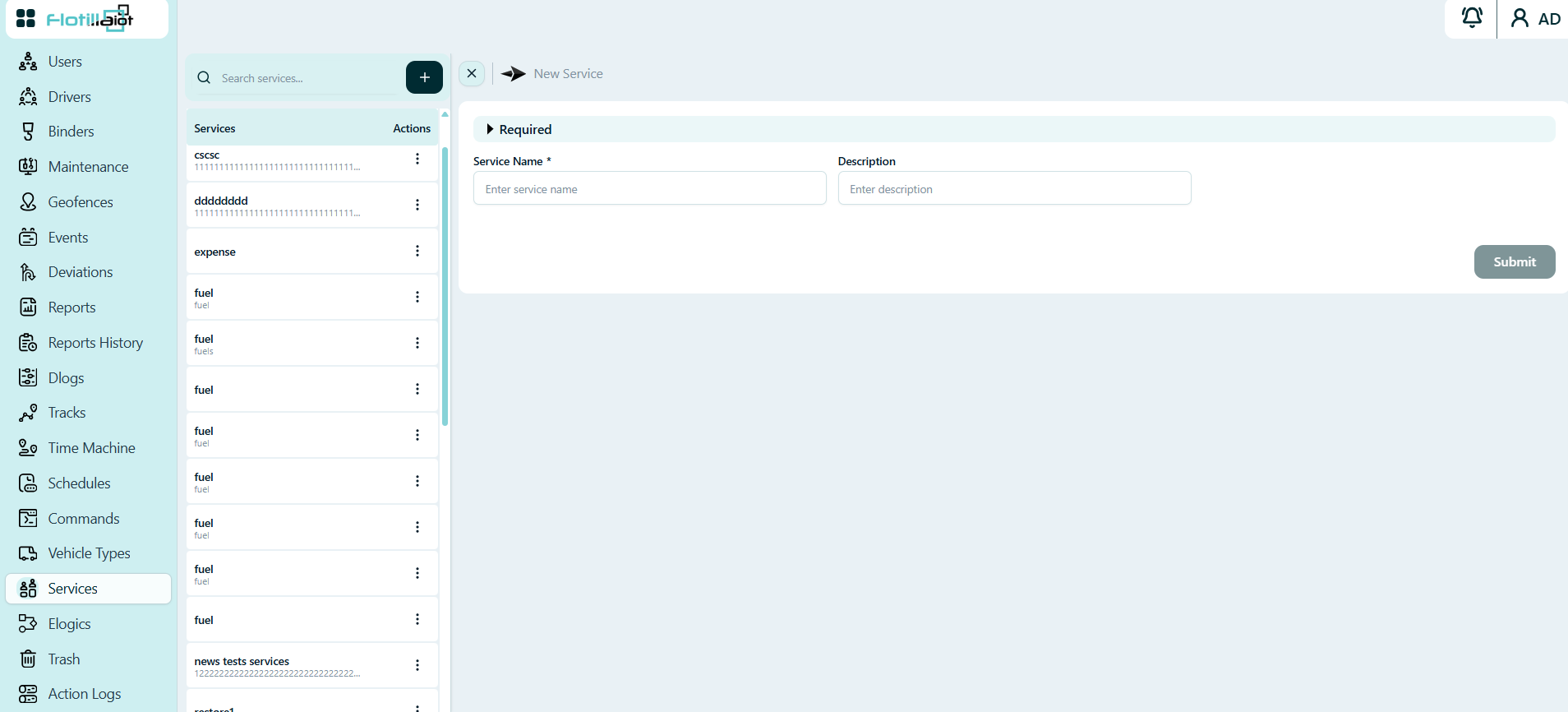
To close the form without saving, click the X at the top left of the form.
20.3 Managing Sub Services
- Select the service in the services list.
- Click + Add Sub Service at the top right and enter the sub service details, such as its name, group, type number and price.
- To change a sub service, click the pencil icon on its row. To remove it, click the bin icon.