


The Reports module generates detailed operational reports that give insight into fleet performance, driver behavior, vehicle usage and sensor activity.
12.1 Report Templates
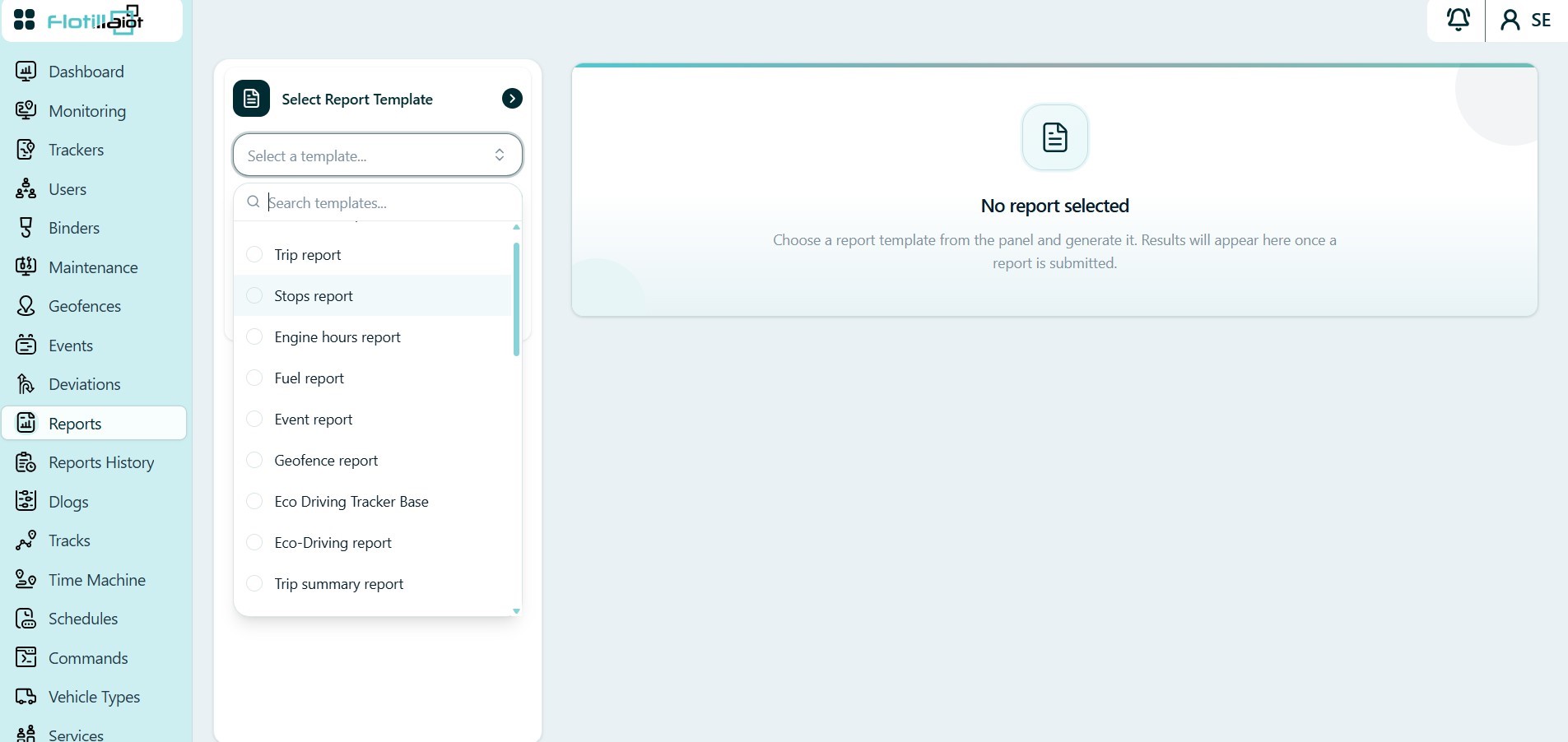
| Category | Reports |
|---|---|
| Detailed | Trip, Stops, Engine hours, Fuel, Event, Geofence and Eco-Driving. |
| Summary | Trip summary, Stops summary, Engine hours summary, Fuel summary, Event summary, Geofence summary and Eco-Driving summary. |
| Specialized | Sensor Tracing, Digital Sensor and Maintenance. |
12.2 Generating a Report
- Select Report Template — choose the report type.
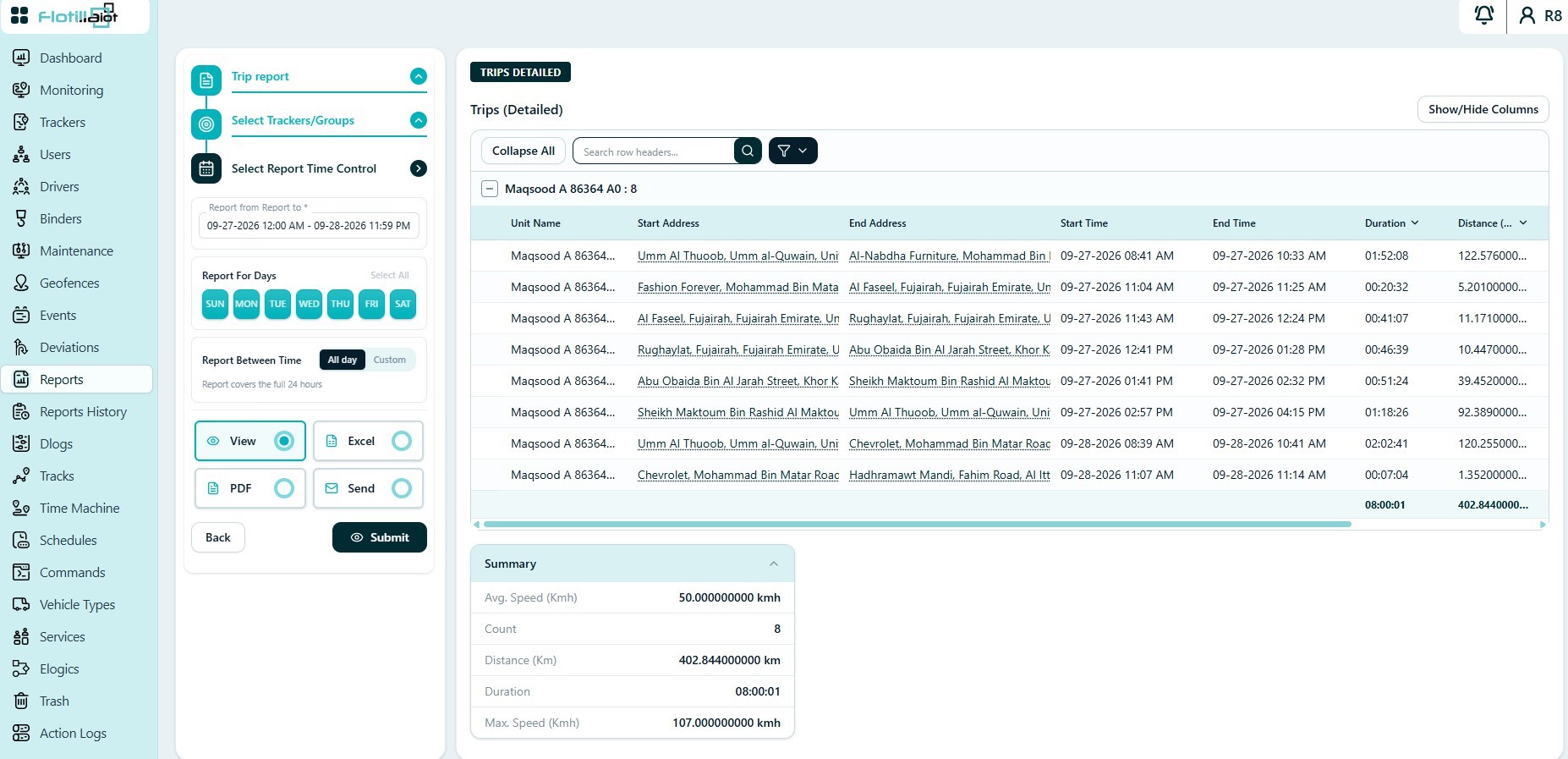
- Select Trackers/Groups — choose the units or groups to include.
- Select Report Time Control — set the date range, the days of the week and the time-of-day window. Quick presets are available for all day, working hours, day and night.
- Choose the output — View on screen, Excel, PDF or Send by email — and click Submit.
12.3 Report Output
On-screen reports show the detailed rows grouped per unit, with sortable columns, a Show/Hide Columns control, search and filters. A Summary panel adds up the totals, for example average speed, number of trips, distance, duration and maximum speed in a Trip report.
12.4 Choosing the Right Report
- Use a detailed report to see every row of activity (for example Trip or Stops), and a summary report for totals per unit.
- Use the specialized reports for sensor and service analysis.
- Re-open past results in Report History (Chapter 13), or automate recurring reports with Schedules (Chapter 17).
12-5 When to Use Report History
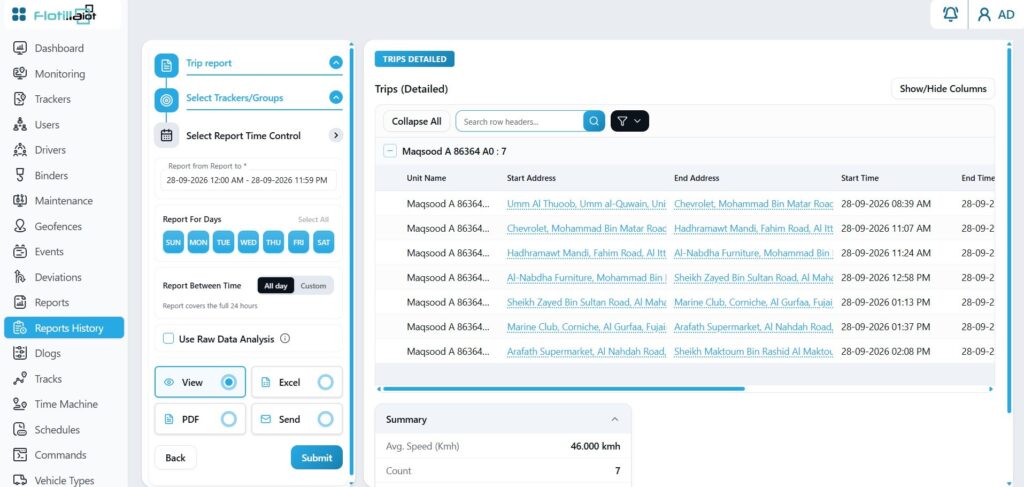
The Report History module uses the same form as Reports and gives you access to reports generated earlier, so you can re-open or re-run them without setting them up again.
- Open a previously generated report without rebuilding it.
- Re-run a past report with the same form and settings as in Reports.
- For reports needed regularly, use Schedules (Chapter 17) to send them automatically by email.