



The main menu of the Flotilla IOT on the left contains different modules. These modules contain different elements and subcategories depending on the applied settings. All the modules, along with their functionalities, are given below
Dashboard
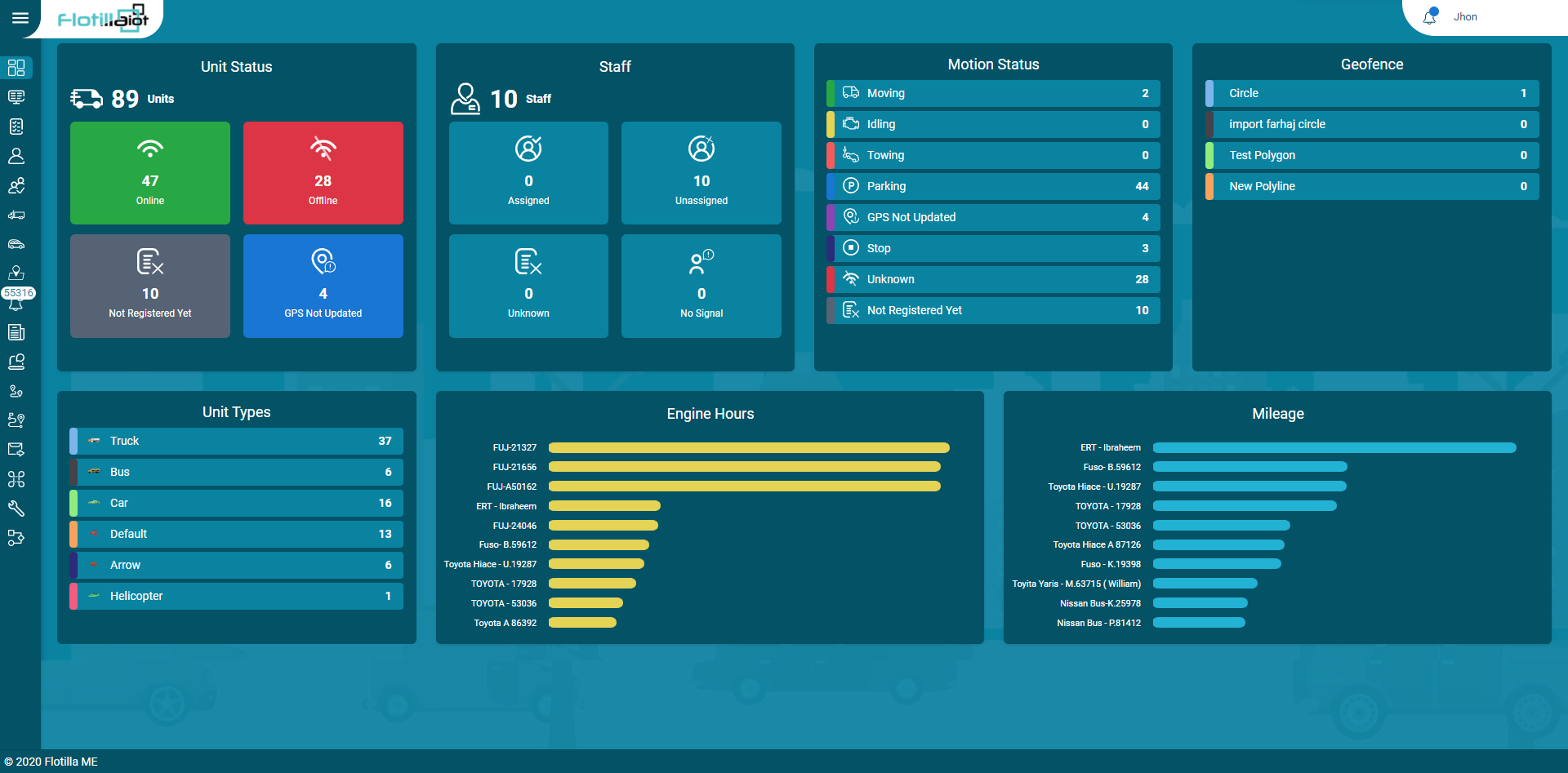
Flotilla IOT provides a comprehensive dashboard that contains a summary of the units from the units list. From the dashboard, users can view the details about unit status, unit types, staff, geofences, motion status, engine hours, and mileage. This information is updated as new real-time data is received from the units.
Unit Status
- This option contains the latest status of the units divided into four categories,s including ‘Online’, ‘Offline’, ‘Not registered yet’, and ‘GPS Not Updated’.
- The user can view the names and the number of units falling in a particular category.
Motion Status
- The motion status of vehicles, including Moving, Idling, Towing, Parking, Stop, etc., can be viewed.
- The number of vehicles in a certain status is displayed with the status name.
Staff
- This option shows the distribution of drivers in four categories:s Assigned, Unassigned, Unknown, and No Signal.
- The number of drivers falling in a specific category is shown.
- By clicking on any driver, all its details can be viewed, including ID, Name, Phone, Assigned Unit ID, and Assigned Unit Name.
Engine Hours
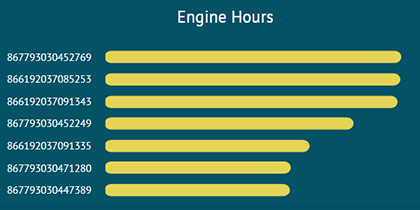
- This option contains the engine hours, which are the time between ignition ON and ignition OFF.
- It shows the engine hours ofthe top 10 units, which are shown in descending order on the dashboard.
- By hovering on the graph user can also view the engine hour value of every individual unit with its unit.
Geofence
- All the created geofences are displayed in this section.
- The number of vehicles in a specific geofence is displayed next to its name.
- You can click on the geofence and see the details of the units that are currently inside that geofence.
Units Types
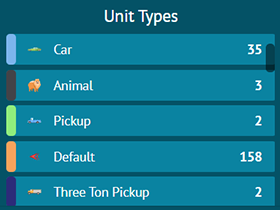
- This option contains the different types of units (vehicles), which are shown with their names and logos on the dashboard.
- The total number of units belonging to a certain type is displayed in front of the name.
- You can click on any type to see the units that fall in that category.
Mileage
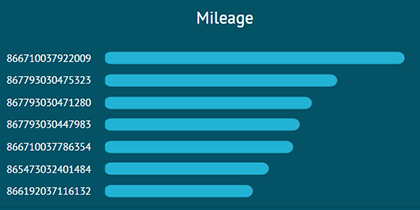
- This option contains the mileage of the top 10 units, which are shown in descending order on the dashboard.
- By hovering on the graph user can also view the mileage value of every individual unit with its unit.