


The Deviations module lets a fleet manager define the expected route for a tracker and driver, including its schedule, stops and allowed tolerances. The platform then checks automatically whether the vehicle follows it. When the vehicle leaves the route, stops where it should not, stays stopped too long or runs late, the platform records a deviation and sends alerts.
In short: you define the plan, and the platform tells you when reality does not match it.
11.1 Why Use Deviations
| Benefit | What it gives you |
|---|---|
| Route compliance | Confirm that drivers follow the assigned road and do not take unapproved detours. |
| Stop control | Make sure mandatory stops are visited and unauthorized stops are flagged. |
| Time control | Detect late arrivals and vehicles that stay off route or stopped for too long. |
| Cost control | Assign a cost and budget to each route and compare plan with reality. |
| Accountability | Tie every route to a tracker and, optionally, a driver, with a downloadable PDF report as evidence. |
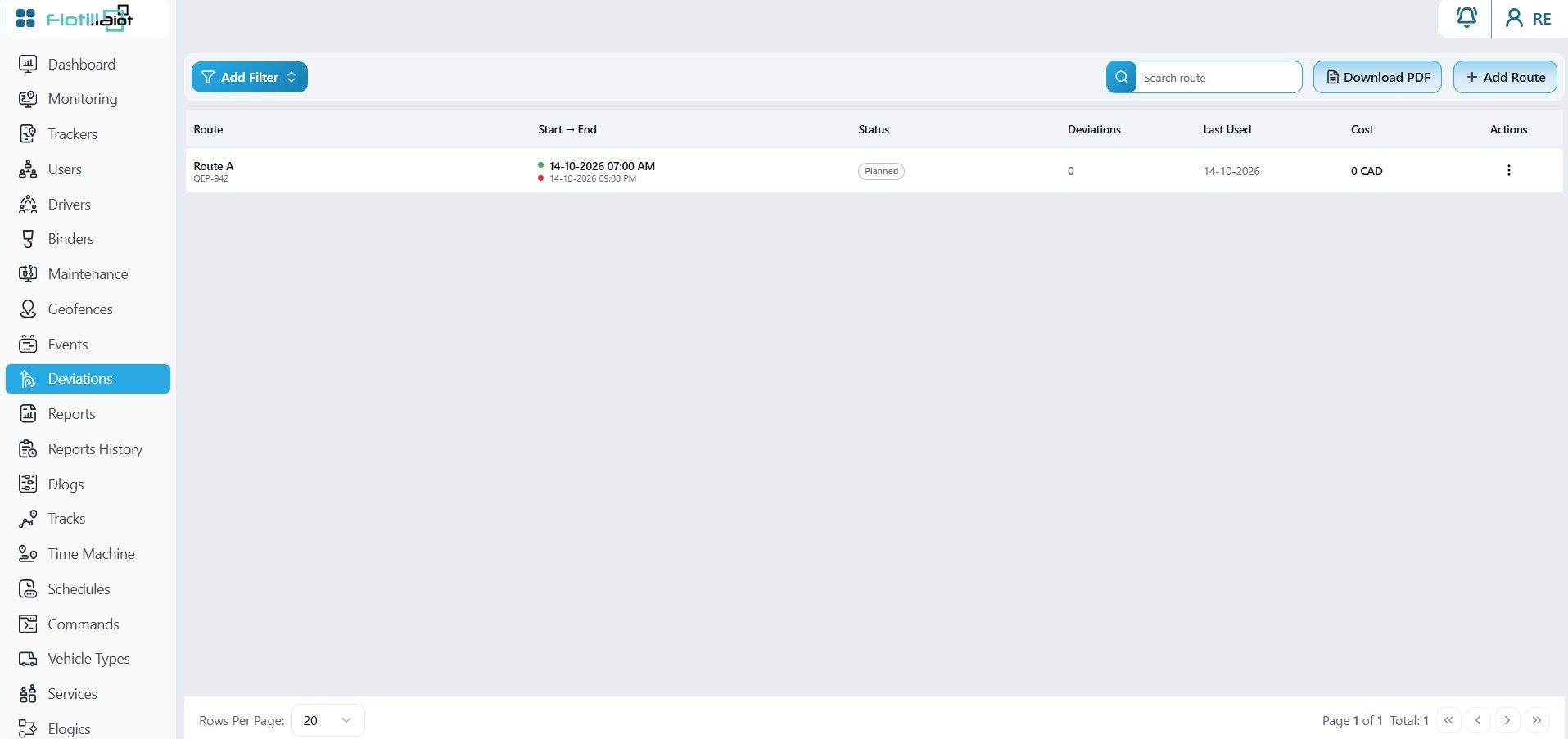
11.2 Creating a Deviation Route
Creating a route takes four steps: route details, route track, stops, and rules and notifications.
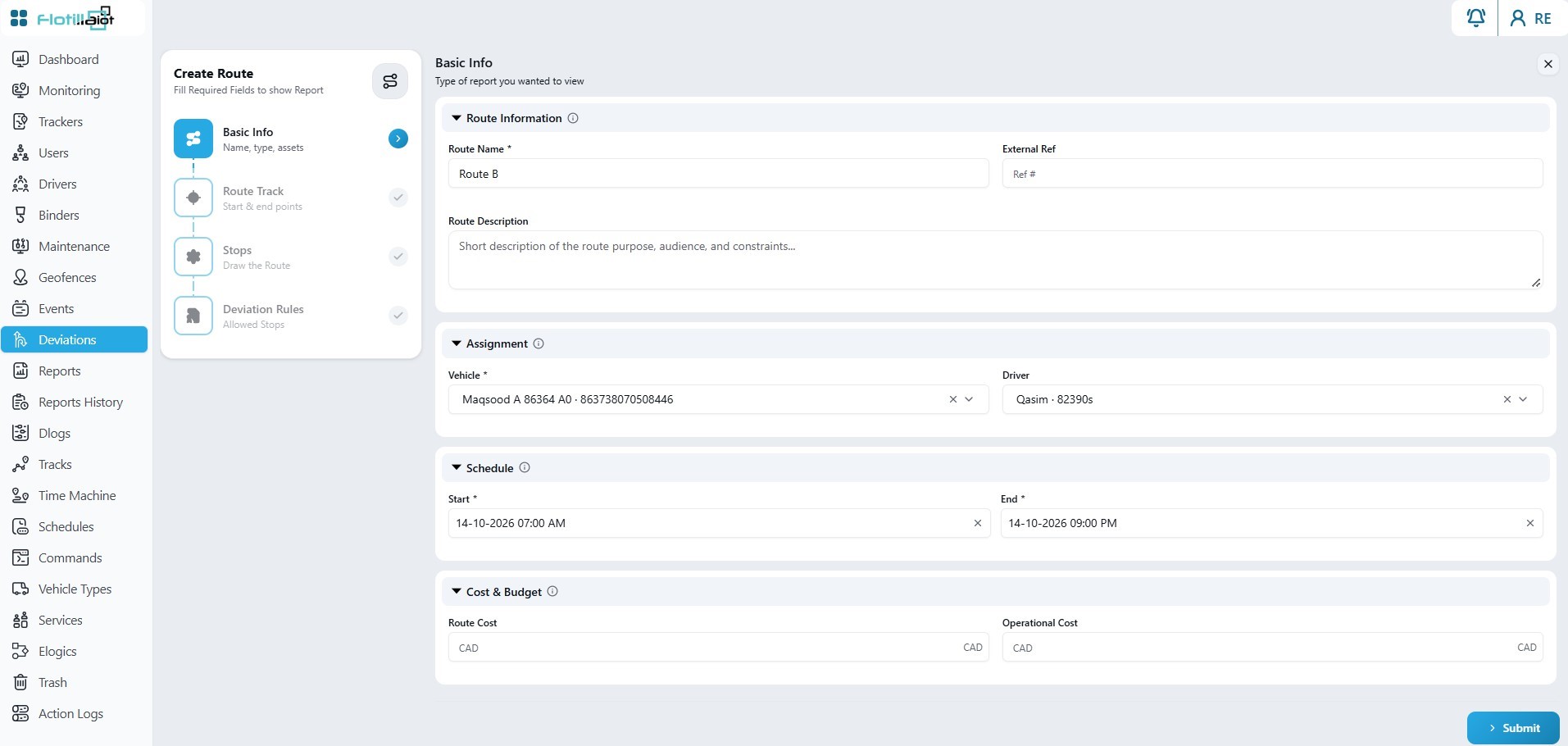
Step 1 — Route Details
- Click Add Route at the top left of the Deviations module.
- Enter the route name, external reference number and description.
- Select a tracker (required) and, if needed, assign a driver.
- Set the scheduled start and end times, the cost and the budget.
- Click Submit to save the details and continue.
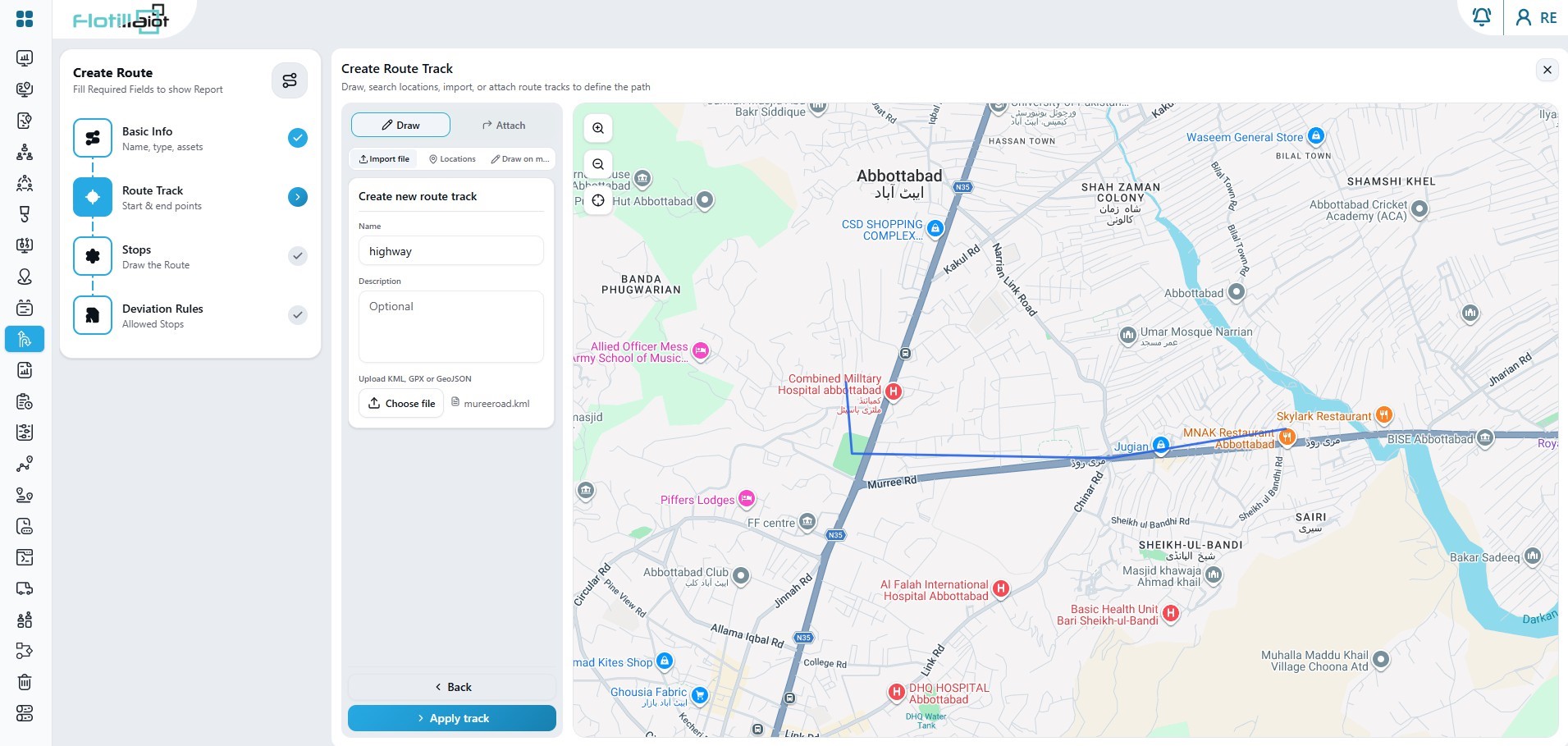
Step 2 — Route Track
Define the route track using one of these methods, then click Submit to continue:
- Upload a route file in KML, GeoJSON or GPX format.
- Draw the route directly on the map.
- Attach an existing route track.
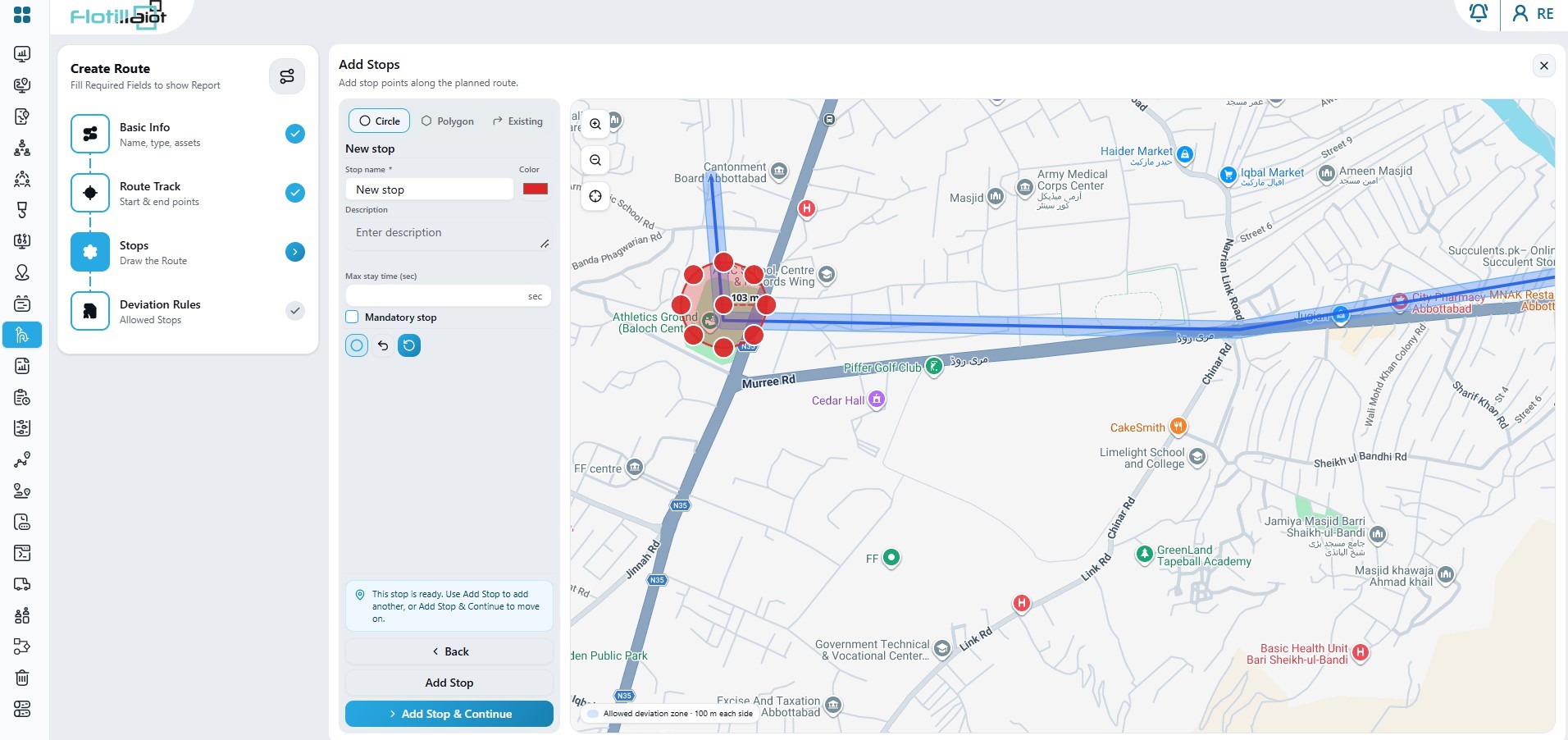
Step 3 — Stops
Add as many stops along the route as you need. Draw each stop on the map as a circle or polygon, or select an existing geofence. A stop can be marked as mandatory, and you can set a time requirement for it.
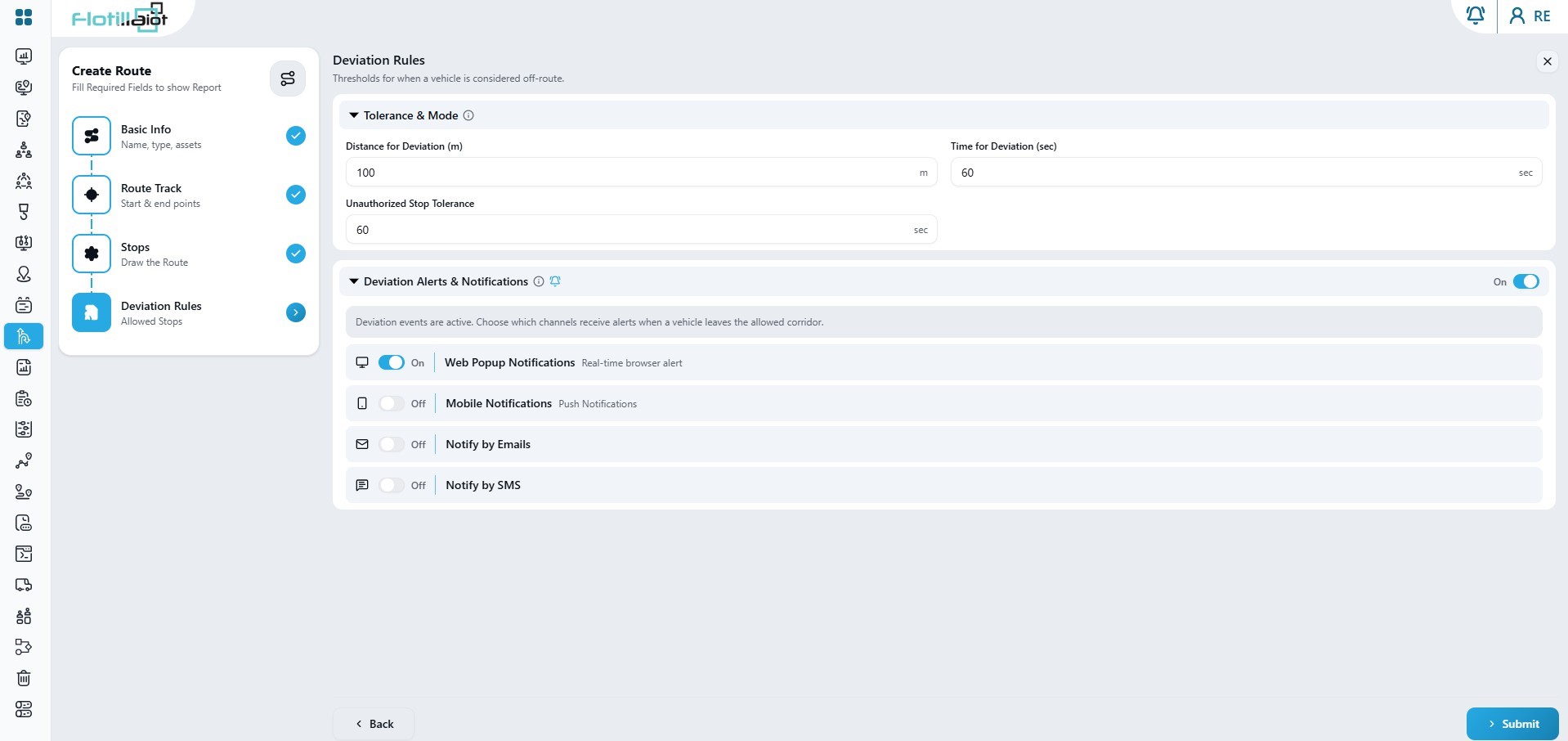
Step 4 — Rules and Notifications
Set the tolerances that decide when the platform raises a deviation event:
| Rule | Description |
|---|---|
| Distance tolerance (meters) | How far the vehicle may move outside the defined route before a deviation event is triggered. |
| Deviation time | How long the vehicle may stay outside the planned route before a deviation event is triggered. |
| Unauthorized stop duration (seconds) | How long the vehicle may stop on the route before a deviation event is triggered. |
Choose how alerts are delivered: web pop-up, mobile notification, email or SMS. When the route, stops, rules and notifications are complete, submit the form to create the route.
11.3 How Deviation Detection Works
While a route is active, the platform continuously compares the live position of the tracker with the plan:
- The tracker starts the route inside the scheduled time window.
- Each position is compared with the route track and the stops.
- If the vehicle breaks a rule beyond its tolerance, a deviation is recorded.
- A deviation event is triggered and sent through the selected alert channels.
- The deviation is stored on the route and appears in the route overview and in the PDF report.
11.4 Route Overview and Deviation Events
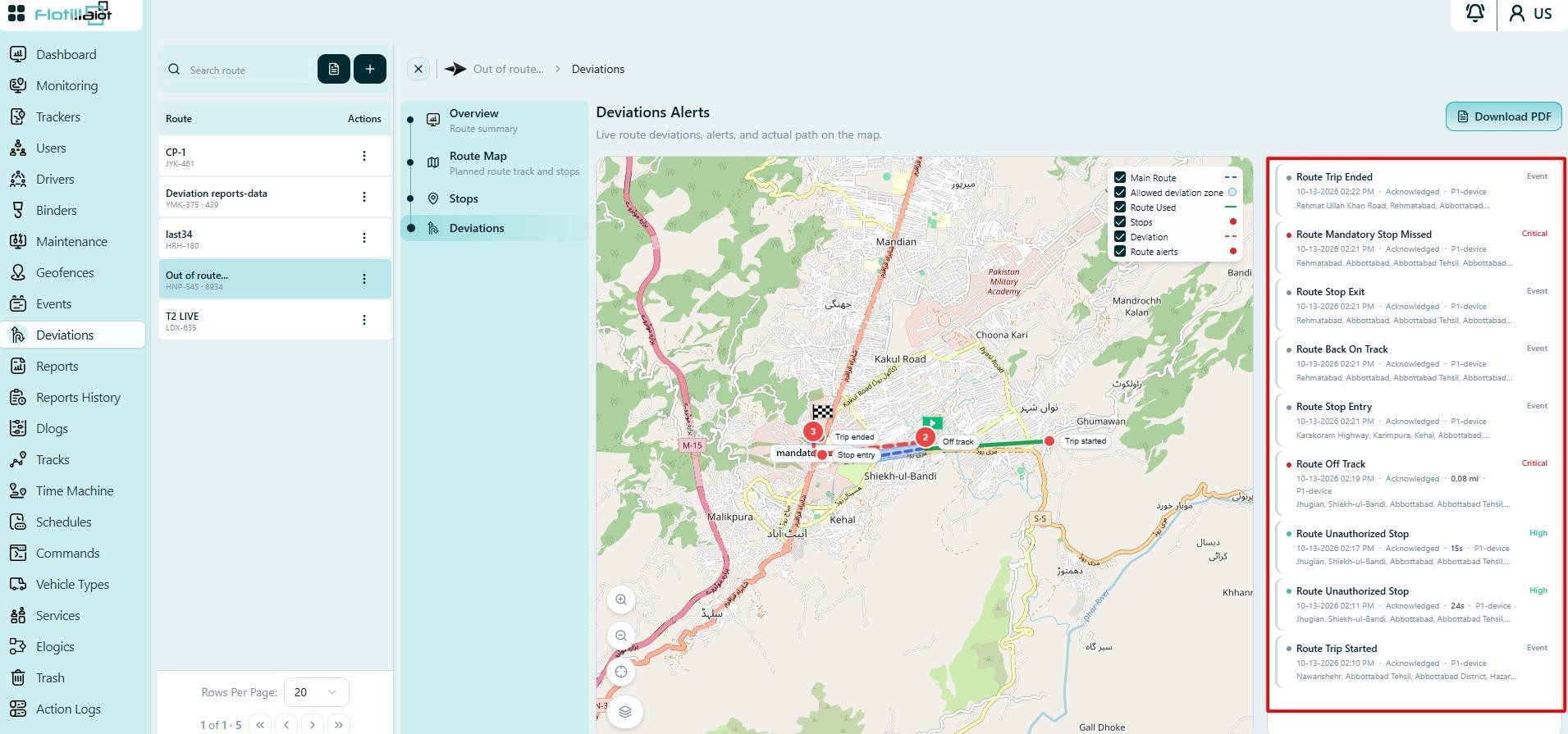
Select a route from the list to open its Overview, which shows everything about the route on one screen:
- Route details — name, reference number, tracker, driver, start and end time, cost and budget.
- Route map — the planned track, the stops and the path the vehicle actually drove.
- Stops — each stop with the time spent there, so you can compare planned and actual stop duration.
- Deviations — every event triggered while the vehicle was on the route, with event type, time, tracker, driver and location. Click an event to highlight its position on the map.
11.5 Deviation Report (PDF)
The Deviation Report is a PDF that compares the planned route with the track the vehicle actually drove, and lists every point where the trip departed from the plan. Download it for any route and use it for driver reviews, audits and proof of service. The report contains:
- Trip Summary — the overall result (for example Compliant), the number of deviations by severity, time off route, unauthorized stops and mandatory stops served.
- Planned Against Actual — start, finish, duration, distance, stops and cost, with the variance and an assessment such as Late Start or Within Tolerance.
- Route — a map of the planned route, the tolerance corridor, the stop zones and the driven track, with deviations marked in red.
- Deviation Analysis and Unauthorized Stops — a detailed list of each breach, or a statement that none occurred.
| Severity | Meaning |
|---|---|
| Critical | A corridor breach, or a mandatory stop that was not completed. |
| High | An unauthorized stop beyond the configured tolerance. |
| Event (no severity) | Normal progress, such as trip start or stop entry and exit. |