


The Report Template Generator module is where report templates are designed. A template decides which tables a report contains, so that reports are consistent and ready to use in the FMS platform (FMS manual, Chapter 12).
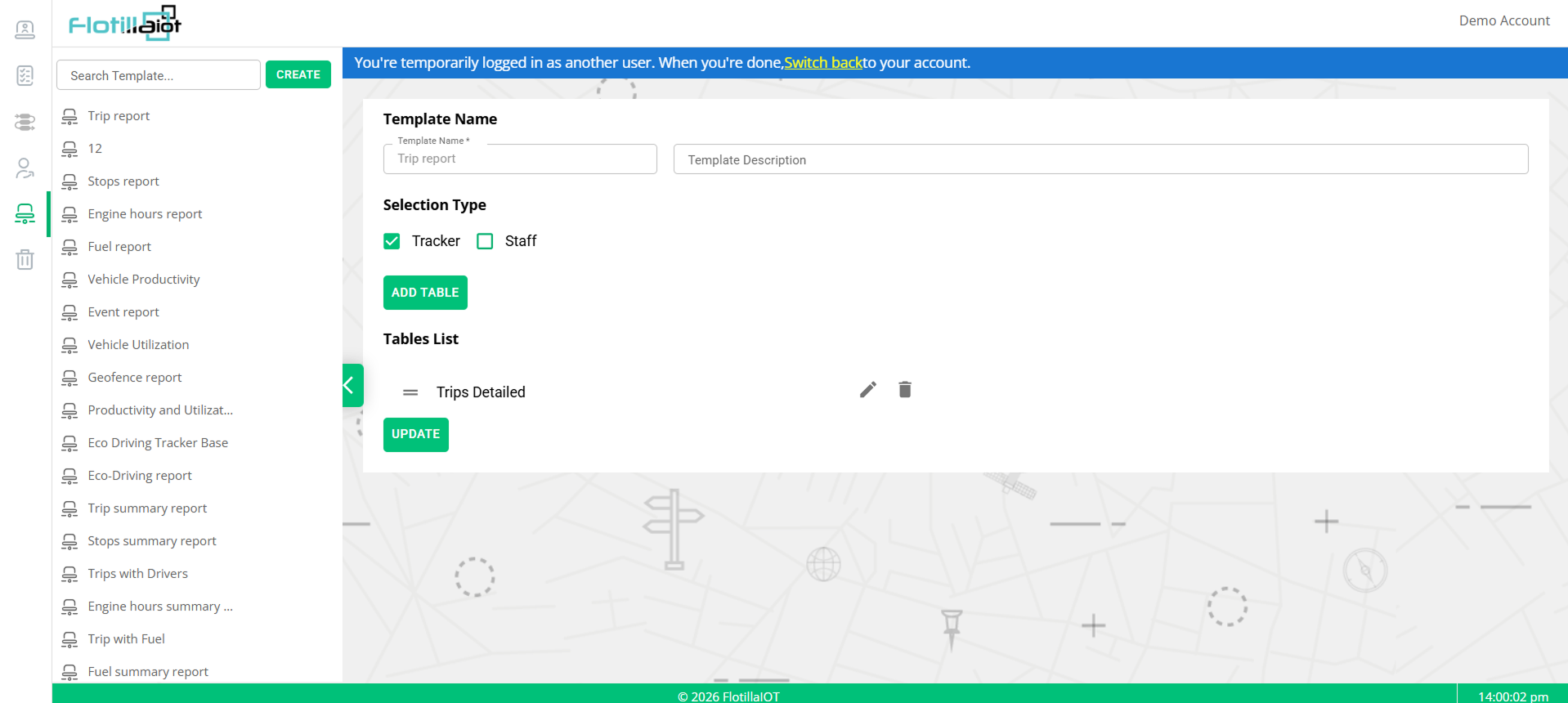
NOTE The blue banner at the top of Figure 6.1 appears because the administrator is signed in as another user (section 2.5). Click Switch back to return to your own account.
6.1 The Template Screen
- Template list (left) — the Search Template box, the CREATE button and the list of existing templates. The green arrow tab hides or shows the list.
- Template editor (right) — the details of the selected template.
6.2 Existing Templates
The list includes ready-made templates such as these:
| Category | Templates |
|---|---|
| Detailed reports | Trip report, Stops report, Engine hours report, Fuel report, Event report, Geofence report, Eco-Driving report, Trips with Drivers, Trip with Fuel |
| Summary reports | Trip summary report, Stops summary report, Engine hours summary, Fuel summary report |
| Productivity and eco-driving | Vehicle Productivity, Vehicle Utilization, Productivity and Utilization, Eco Driving Tracker Base |
6.3 The Template Editor
| Element | What it does |
|---|---|
| Template Name | The name of the template. This field is required. |
| Template Description | A short text that explains what the template is for. |
| Selection Type | Choose Tracker or Staff: whether the report is about tracking units or about staff such as drivers. |
| ADD TABLE | Adds a table to the template. |
| Tables List | The tables of the template, for example Trips Detailed. Drag the handle at the left of a table to change its order. The pencil icon edits the table and the trash icon removes it. |
| UPDATE | Saves your changes to the template. |
6.4 Creating a Template
- Click CREATE above the template list.
- Enter the Template Name and, if you like, a Template Description.
- Choose the Selection Type: Tracker or Staff.
- Click ADD TABLE for each table the report needs, then put the tables in the right order.
- Save the template. Test it in the FMS platform before you use it for customers.
6.5 Changing a Template
- Find the template with Search Template and select it.
- Use the pencil icon to change a table, the trash icon to remove one, or ADD TABLE to add one.
- Click UPDATE to save.
IMPORTANT A change to a template affects the reports that are generated from it afterwards. Test your changes with a test account first.